How to Deploy
Directly onto the Watch
Copy Your App into the Watch Memory via USB
Connect the watch via USB cable. Wait for Mass Storage to be attached. Note: It may take some time as running apps may need to flush their data before mass storage becomes active.
Go to the
Apps/directory and create a new one with a name equal to the app name.Paste the
*.uappinto this folder.Eject the attached watch drive safely.
Disconnect the USB cable.
Perform a watch power cycle: power off the watch and turn it on again.
Press the top right button and check the app.
Troubleshooting
If you do not see the app, check the hash sum of the copied file.
If the error still persists, use a debug adapter to monitor the watch debug UART Tx line to see the logs.
If you still encounter any platform issues, please create an issue at the GitHub project issue page.
To discuss any issues, use Discussions.
Sharing the Apps
Via https://apps.unawatch.com for Closed Source Apps
Disclaimer: In these instructional steps, we use the Files Tutorial as an example. Please apply the steps below to your own app!
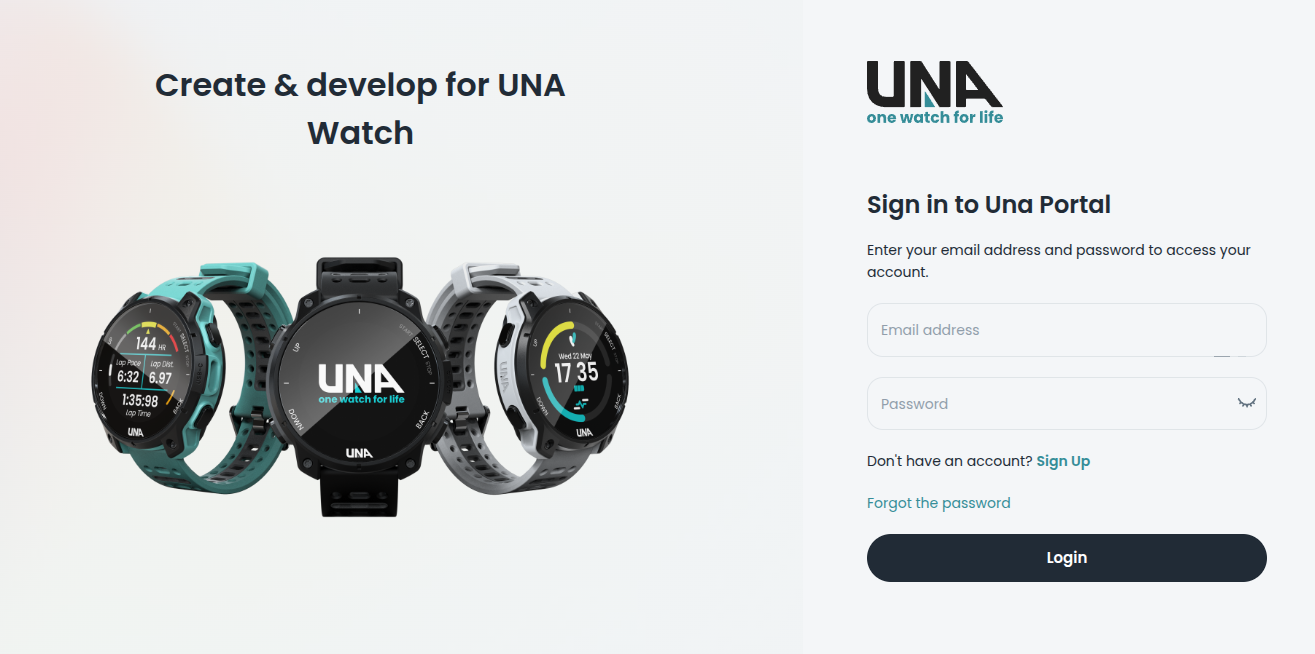
Enter the portal page and sign up.
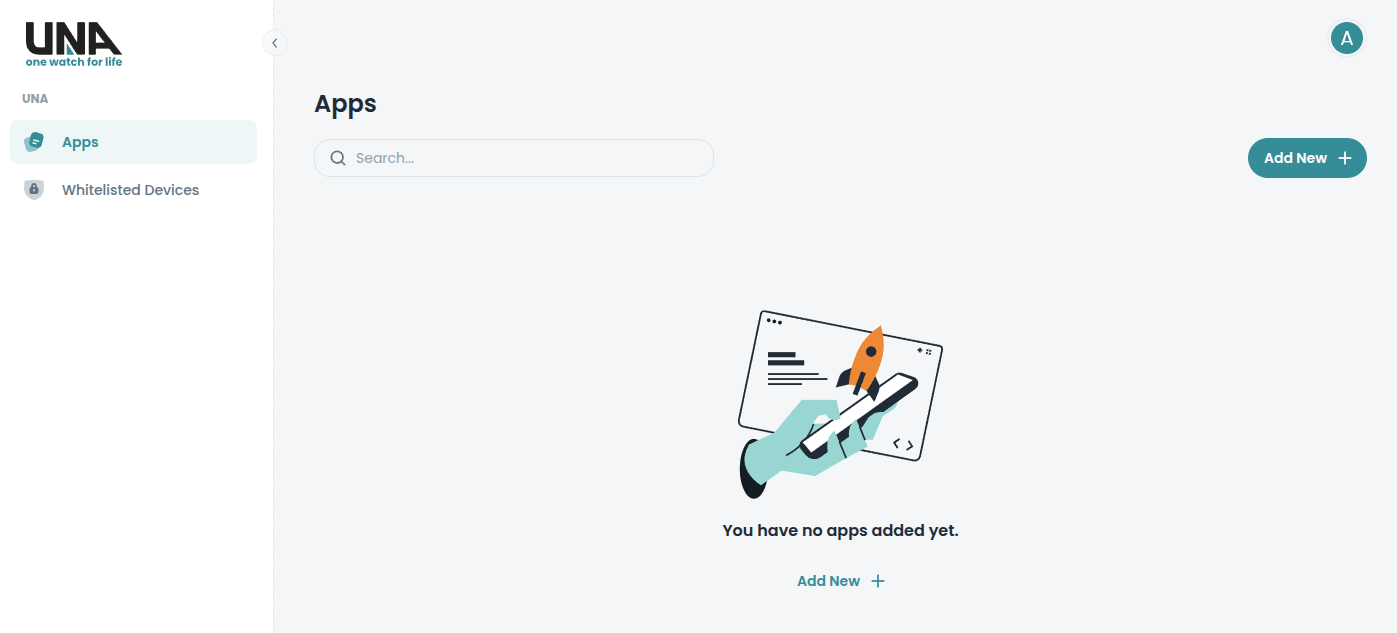
After signing in, click Add New.
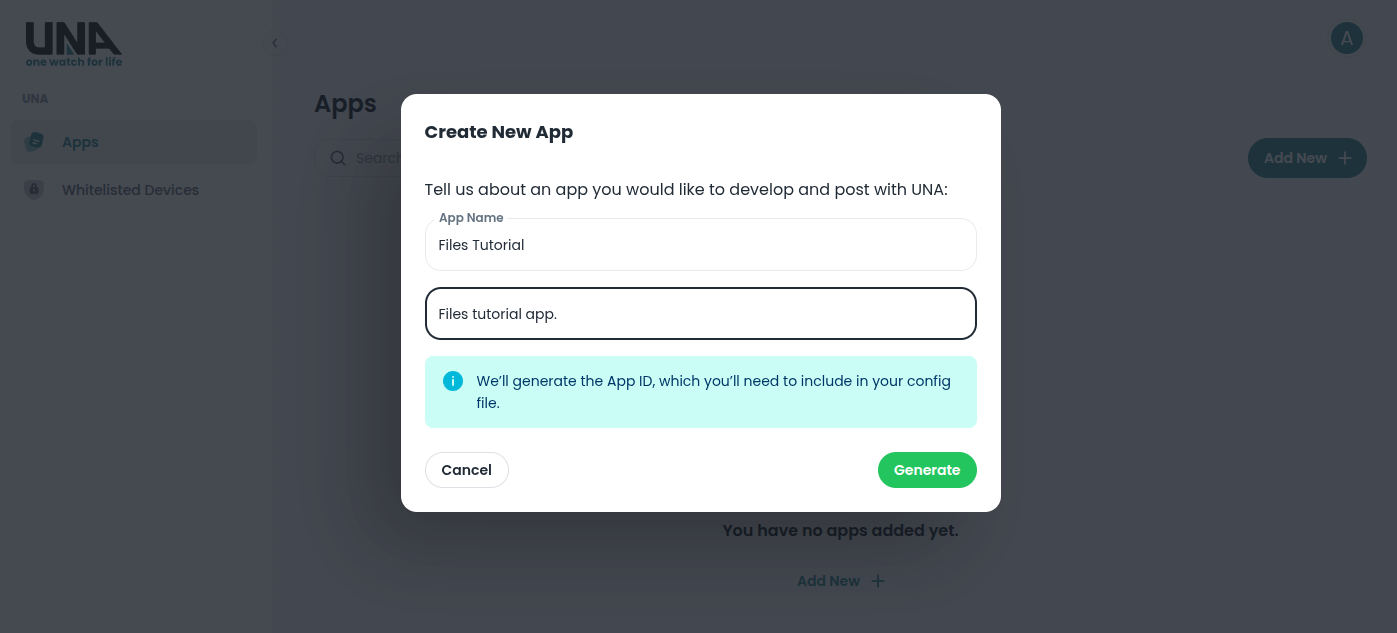
Enter App Name and a brief description. Click the Generate button.
Copy App ID from app Page:
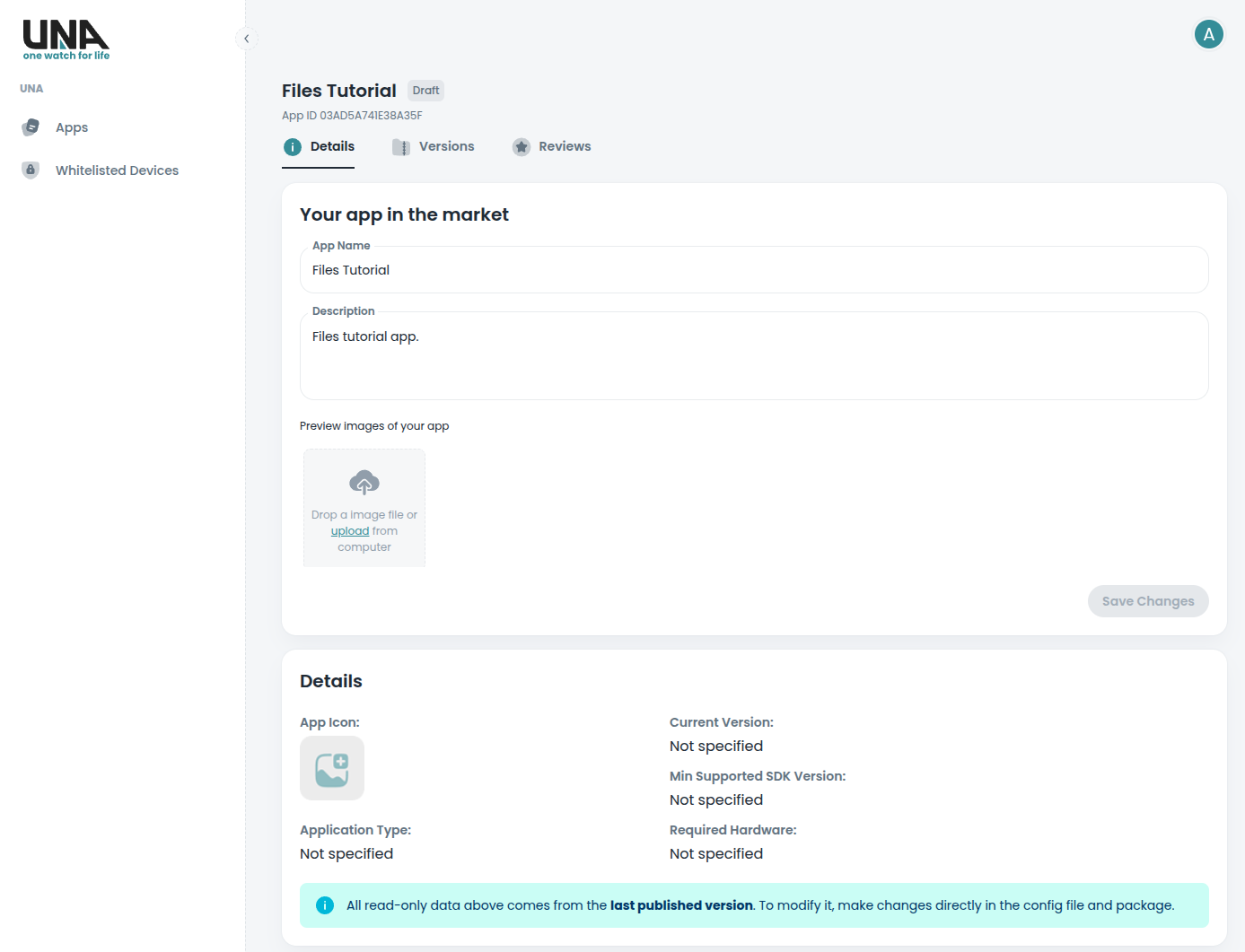
Paste it into your
CMakeLists.txtinto theAPP_IDvariable. Note: APP_ID is required to track the apps in the apps store and for the mobile app to match new*.uappfile versions in case the file name itself has been changed.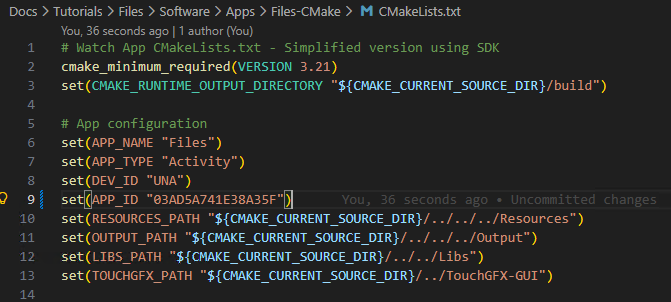
Compile the app with the generated APP_ID (see sdk-setup for detailed instructions). Note: Run
cmaketo apply the new APP_ID. Verify in the build output that the ID matches in theapp_merging.pylog:INFO:root:ID : 03AD5A741E38A35F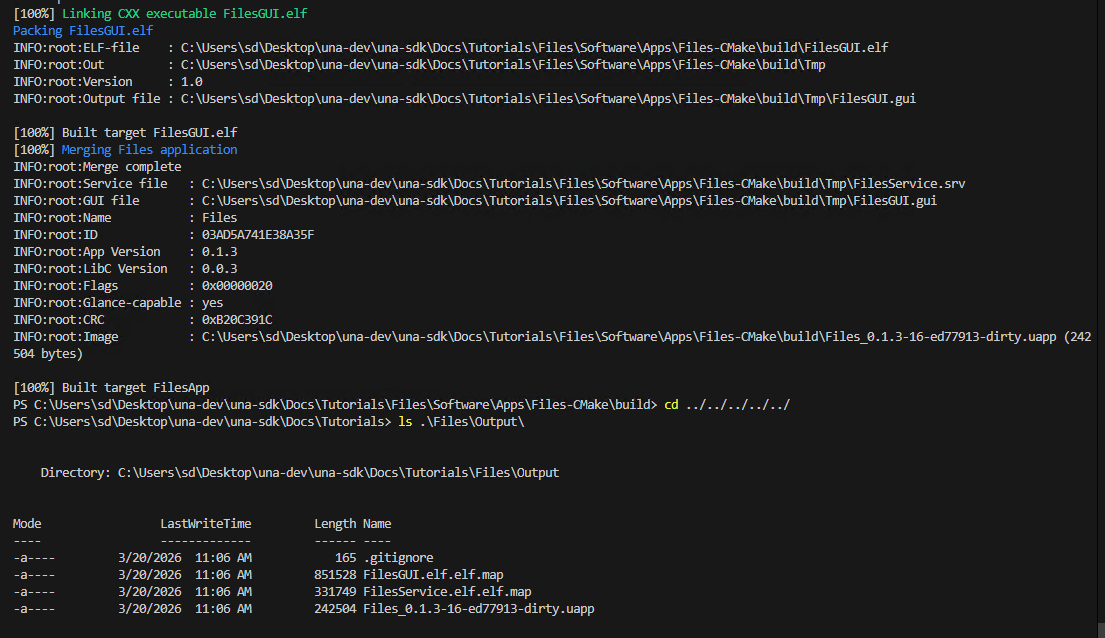
Create the
app-manifest.jsonfile — see App Manifest JSON for every key it may carry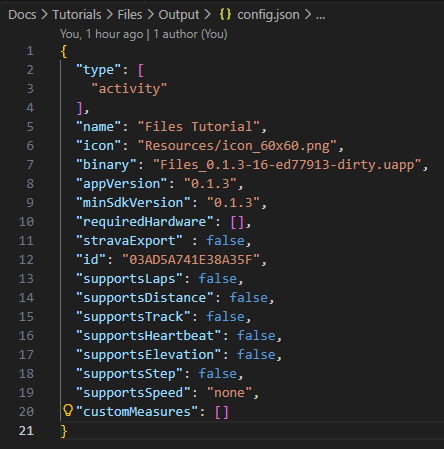
Set its
minKernelVersionwith the SDK resolver rather than by hand —--stampraises it to the ABI-derived floor, keeping any deliberately-higher value you set (see App Manifest JSON):python3 Utilities/Scripts/app_packer/min_kernel_version.py --stamp app-manifest.json
Pack the resulting
*.uapp,icon.png, andapp-manifest.jsoninto a*.ziparchive.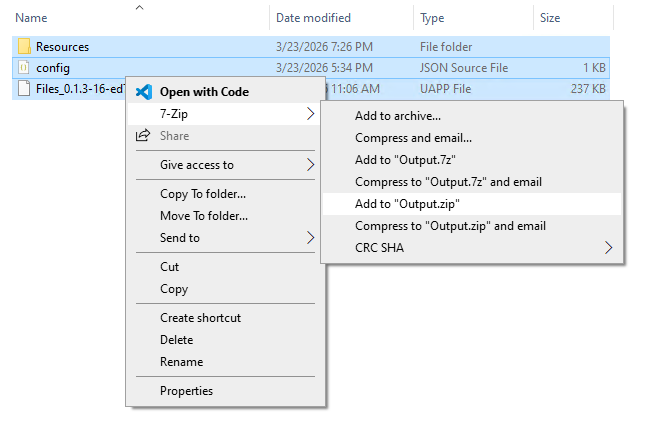
At the app page, click the Version tab.
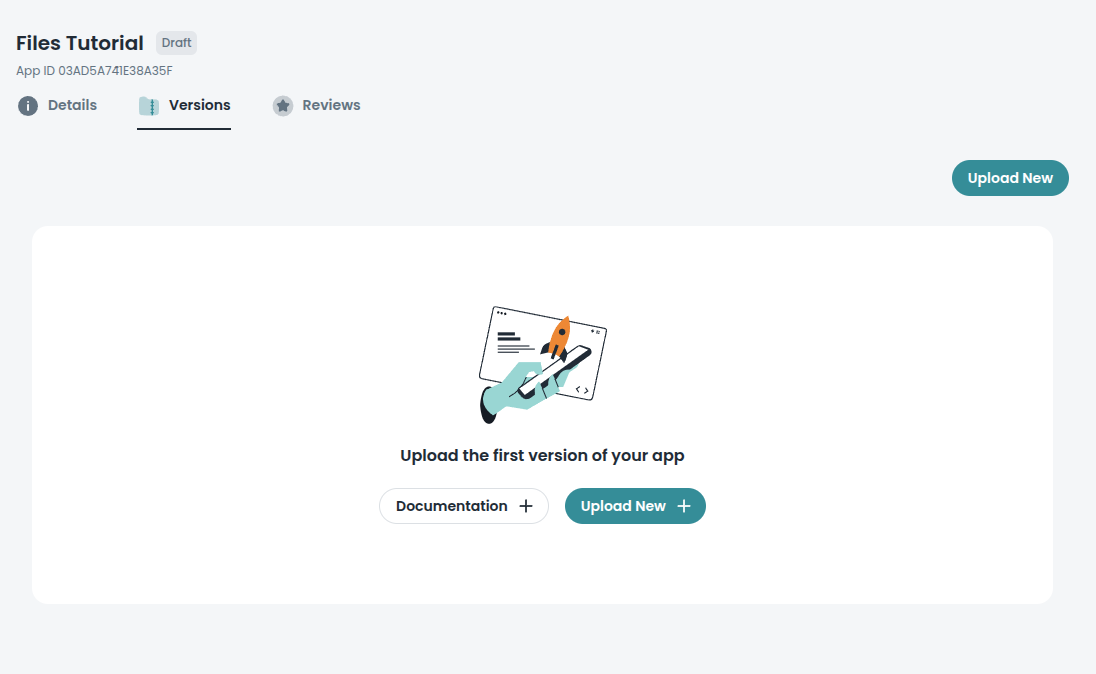
Click Upload New.
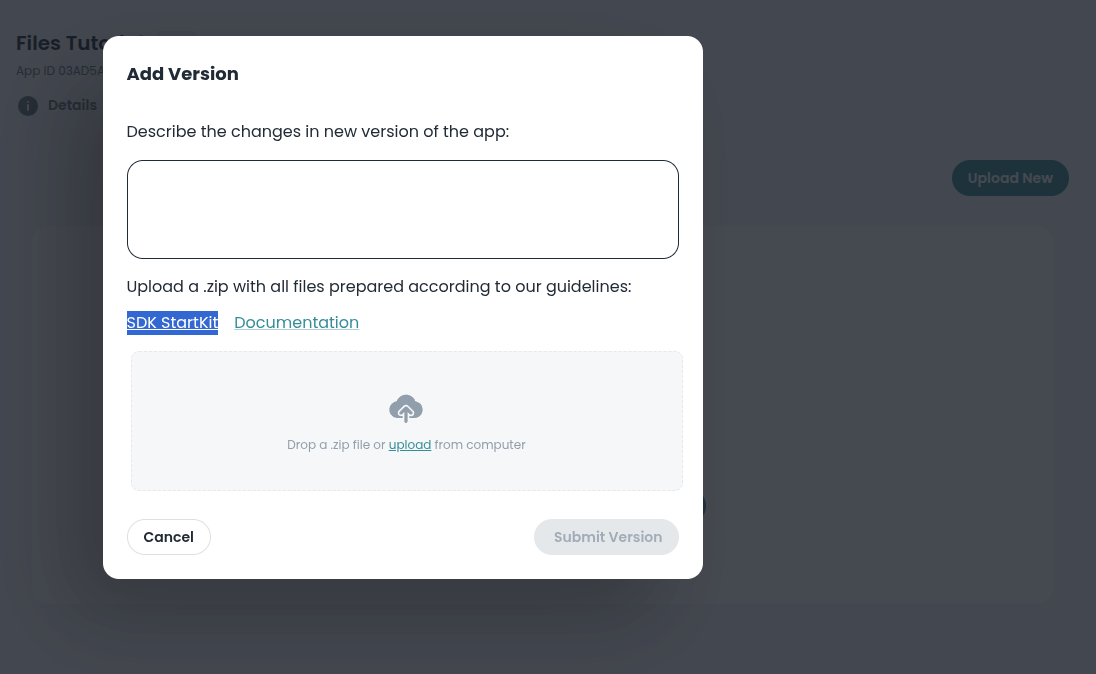
Upload the resulting
*.zipfile.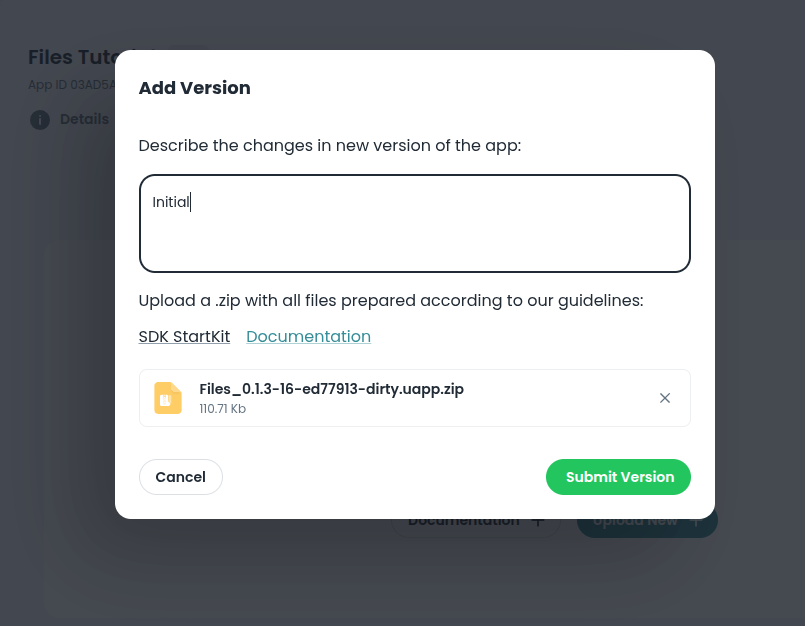
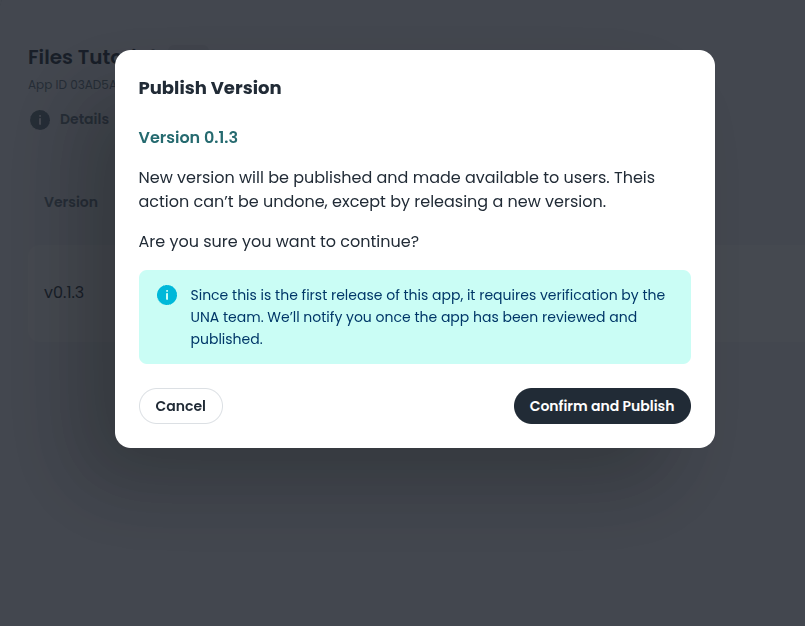
After the upload succeeds, click Release to publish the app.
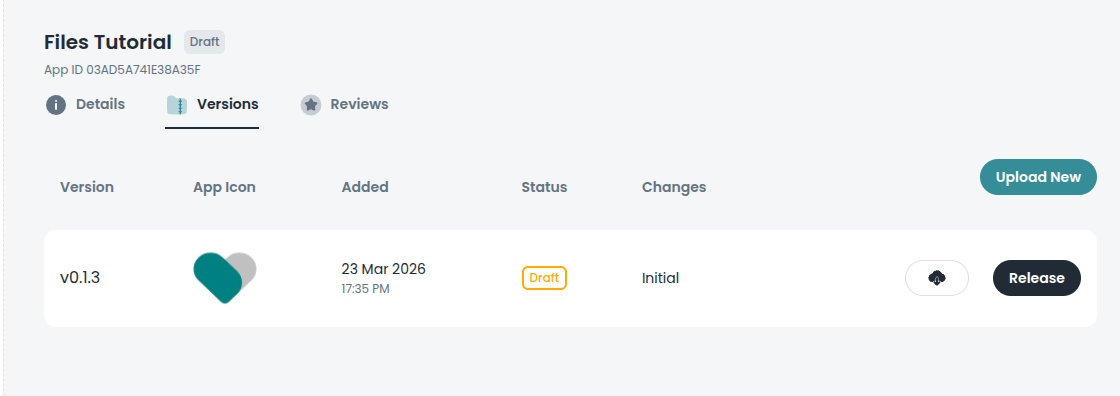
Confirm by clicking Confirm and Publish
Via PR to https://github.com/UNAWatch/una-sdk for Open Source Apps
Apply a PR to https://github.com/UNAWatch/una-sdk with changes under
Examples/Apps/.